

In Bitrix24, you can use CoPilot in a special chat. CoPilot can assist you with a wide range of tasks like writing email texts or coming up with business ideas.
In the latest update, the chat with CoPilot has some new options:
- Choose a CoPilot role
- Invite colleagues to chat
- Use the chat with CoPilot in the mobile app
How to open a chat with CoPilot
Find the chat with CoPilot in a separate tab on the chat panel. CoPilot saves the chat history and remembers your questions. Anytime, you can return to the chats you started earlier to proceed.
Web version
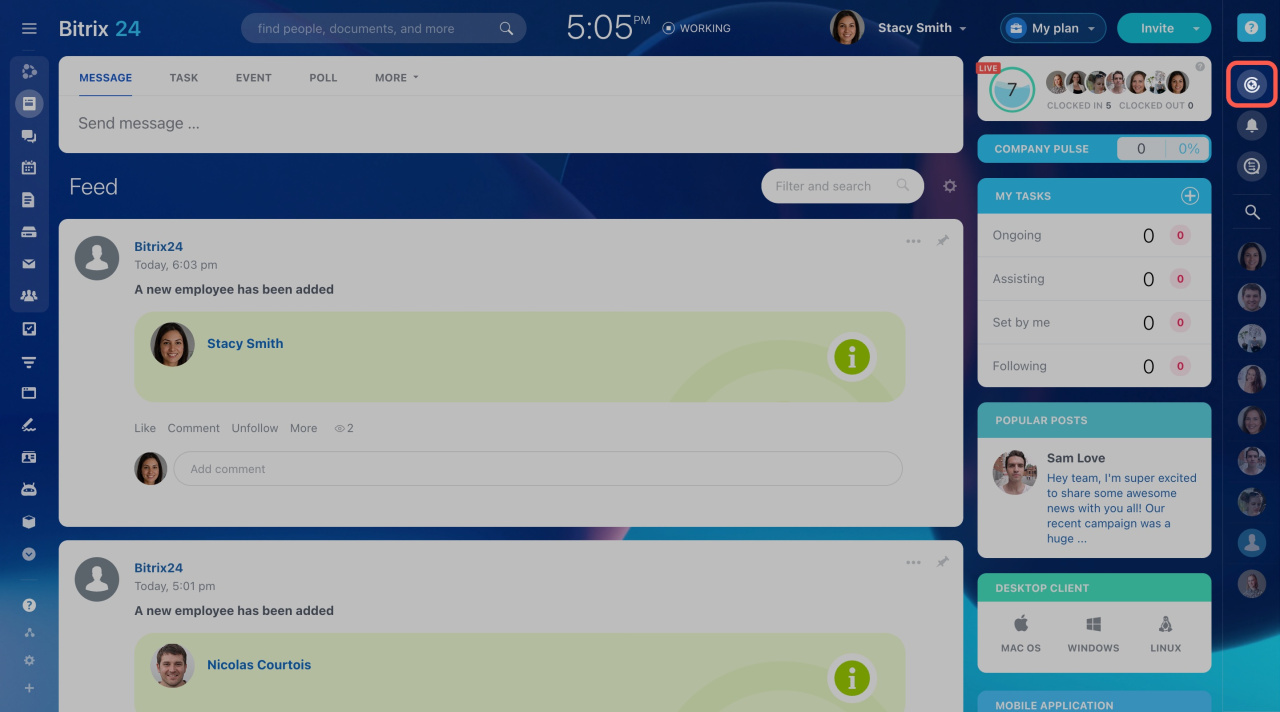
Click on the CoPilot icon in the chat sidebar.
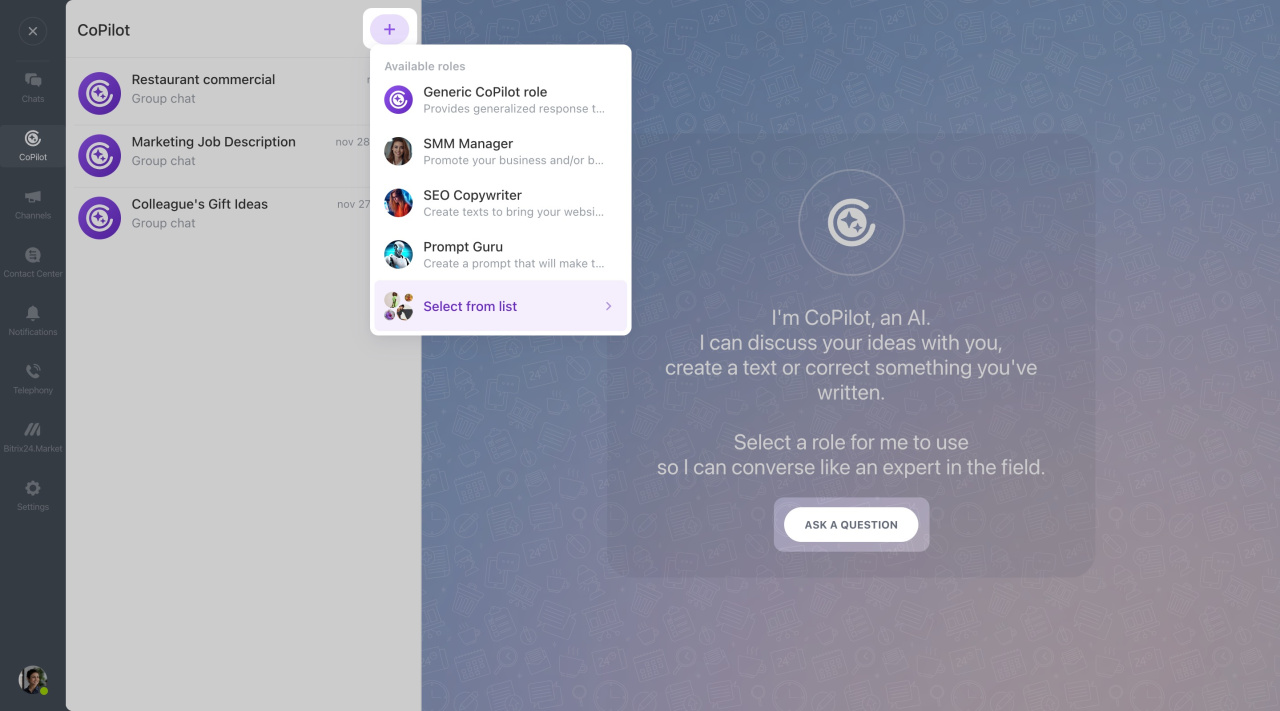
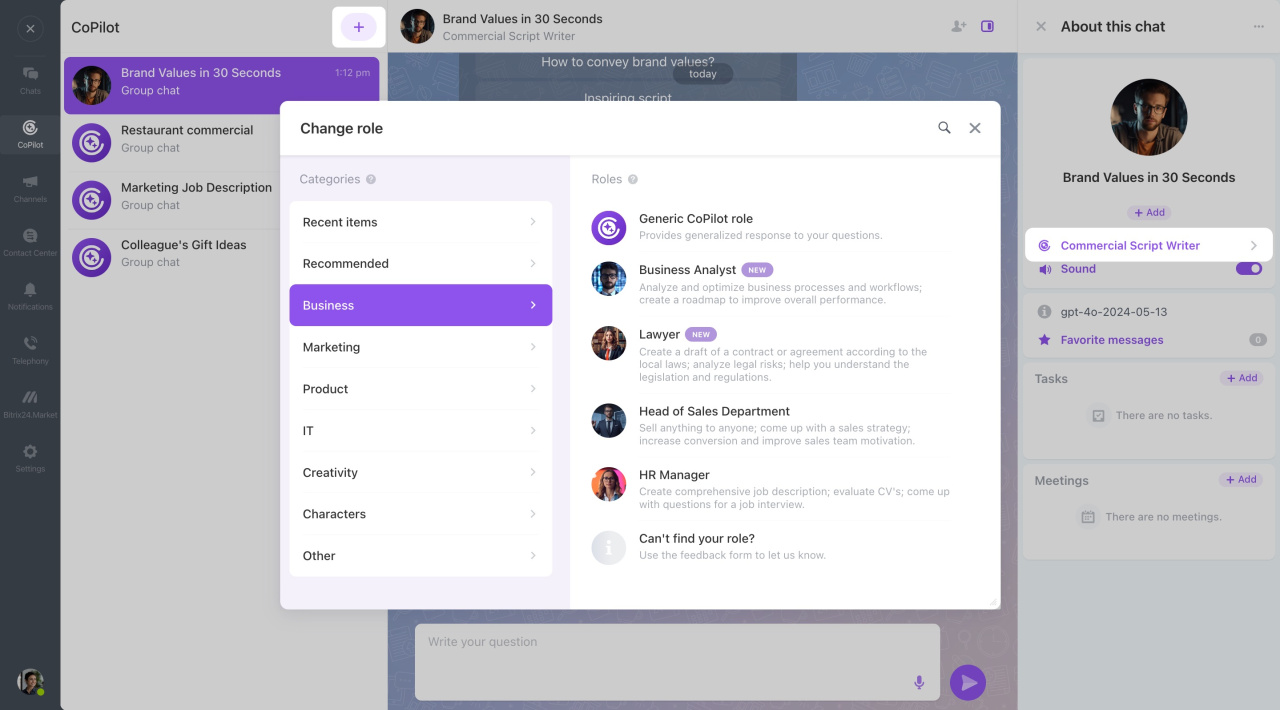
To start a chat, click + or Ask a question and select a role. For general questions, choose Generic CoPilot role.
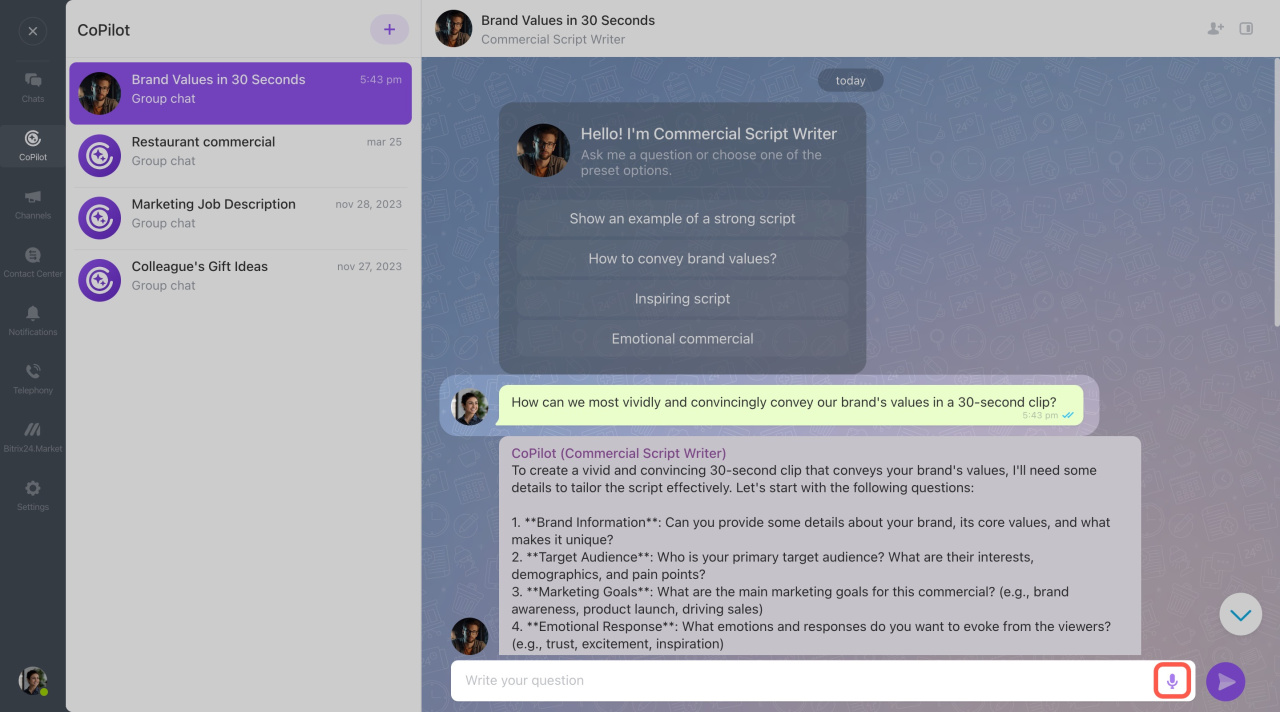
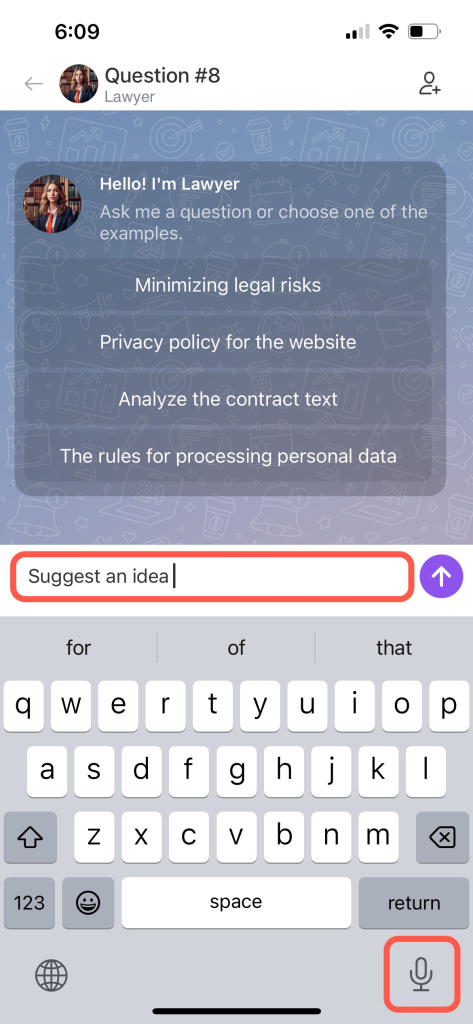
Enter your question or use the mic icon to ask by voice.
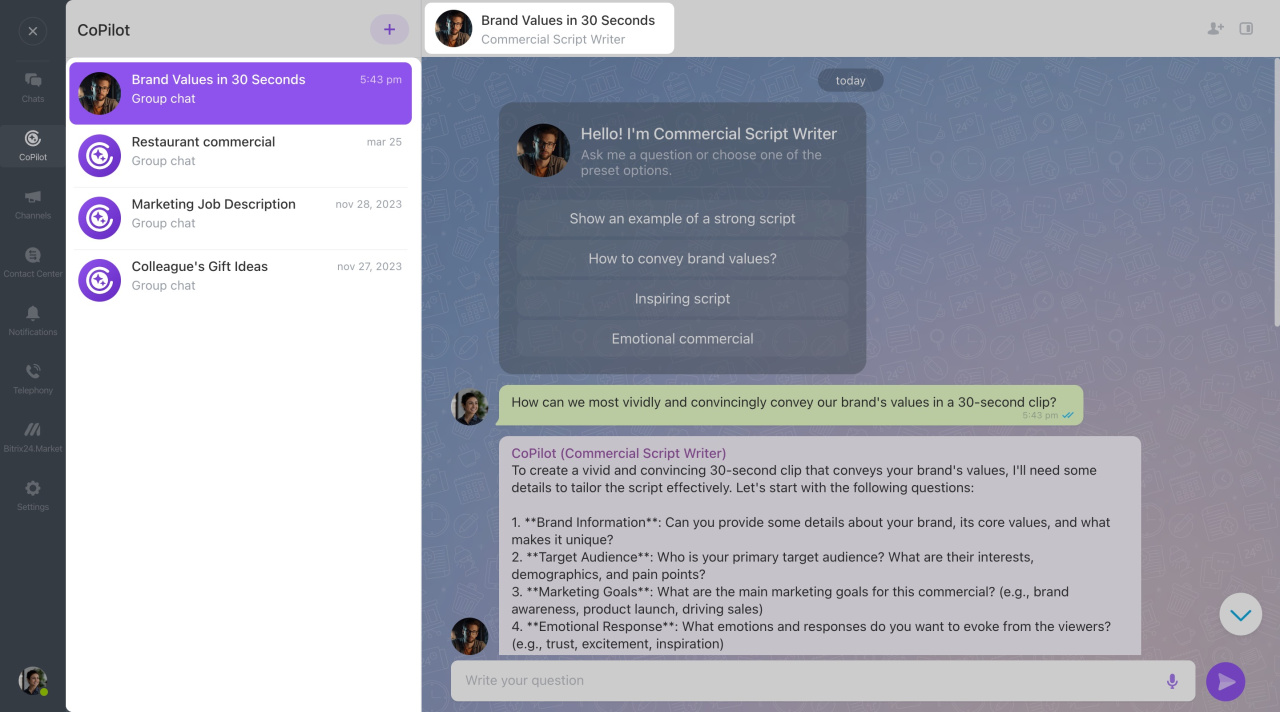
Change the chat name manually or wait for it to update automatically based on your question. Thus, you can quickly find it in the chat list.
Mobile app
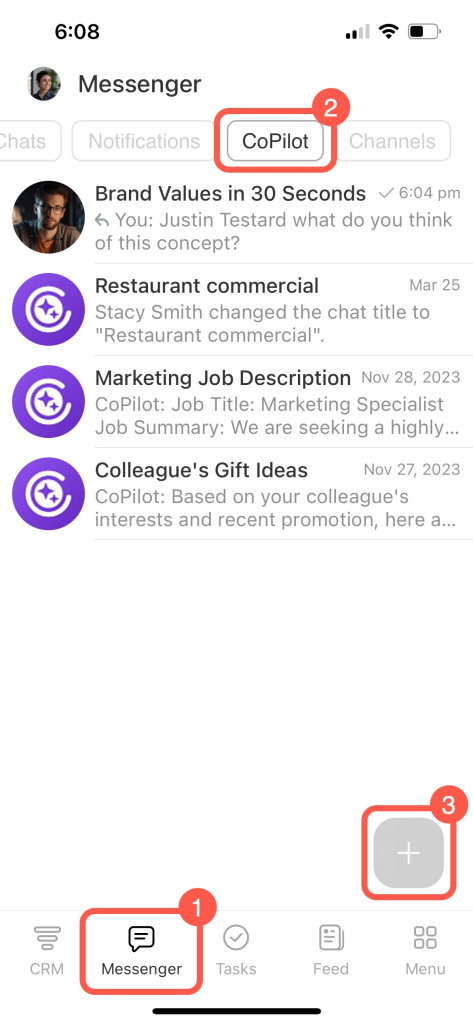
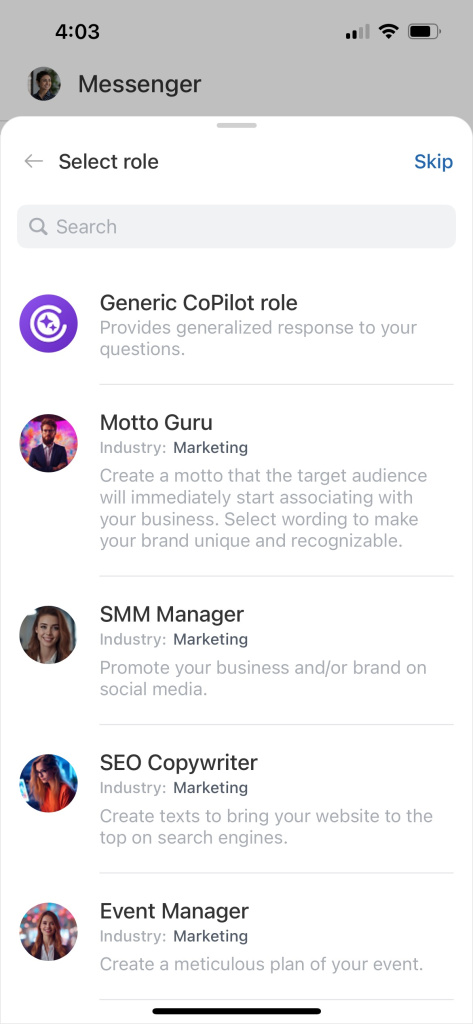
Go to Messenger and open the CoPilot tab. Then tap on + and select a role. For general questions, choose Generic CoPilot role or tap Skip.
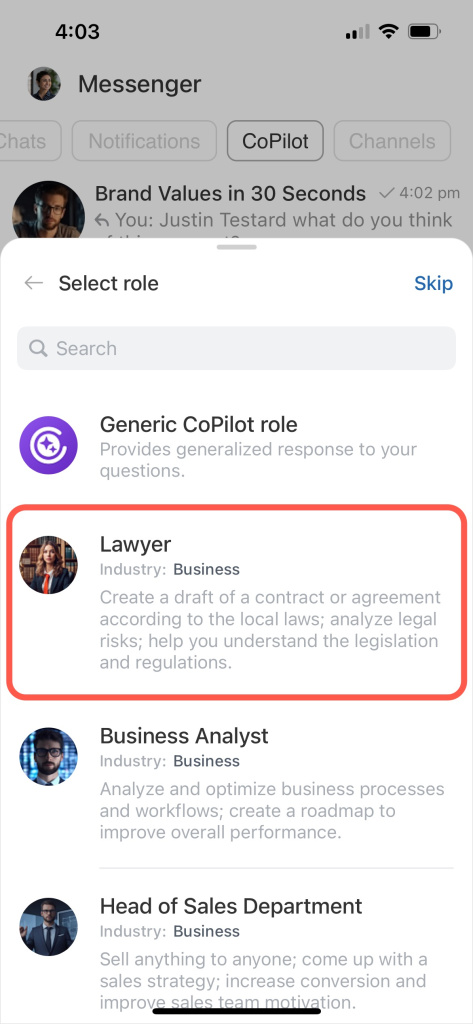
Enter your question or use the mic icon to ask by voice.
CoPilot roles
CoPilot can act as an expert in over 30 roles, like sales manager, lawyer, HR, poet, and more.
Web version
Choose a role when starting a chat, or change it later. Roles are grouped by activity area. For example, as a lawyer, CoPilot can help with legal risks or regulations.
Start a chat and see how CoPilot responds in different roles using preset prompts.
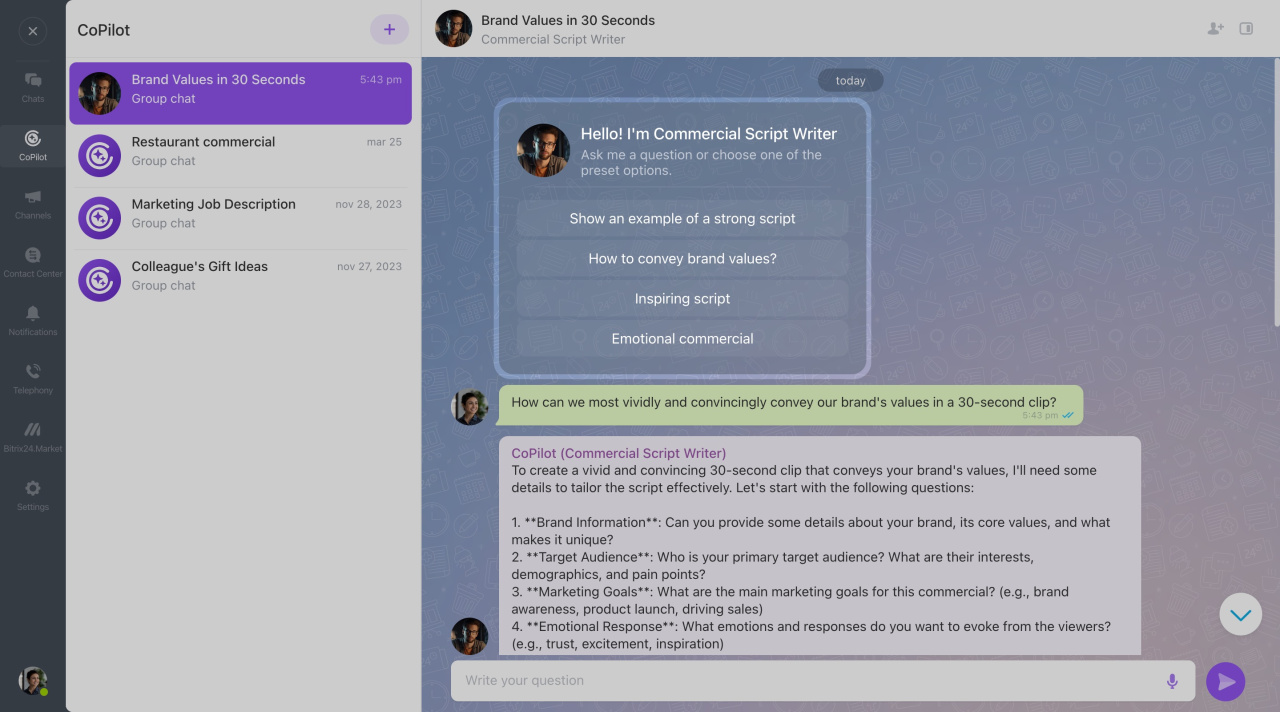
You can also create your own prompts. Specify the response format, set limits, and give examples. Try out various formulas to get the most accurate response.
How to write detailed prompts for CoPilot
Mobile app
Choose a role when starting a chat, or change it later. Roles are grouped by activity area. Start a chat and see how CoPilot responds in different roles using preset prompts.
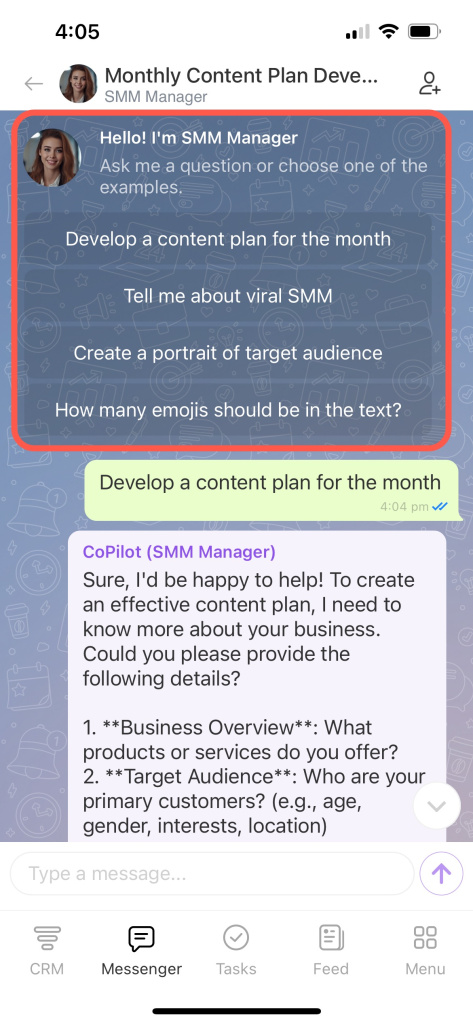
You can also create your own prompts. Specify the response format, set limits, and give examples. Try out various formulas to get the most accurate response.
How to write detailed prompts for CoPilot
How to add colleagues to a chat with CoPilot
Invite colleagues to chat with CoPilot to ask questions and discuss ideas together. All chat members can see CoPilot’s responses.
You can add members when starting a chat or later.
Web version
Click the Add members icon and select employees to invite.
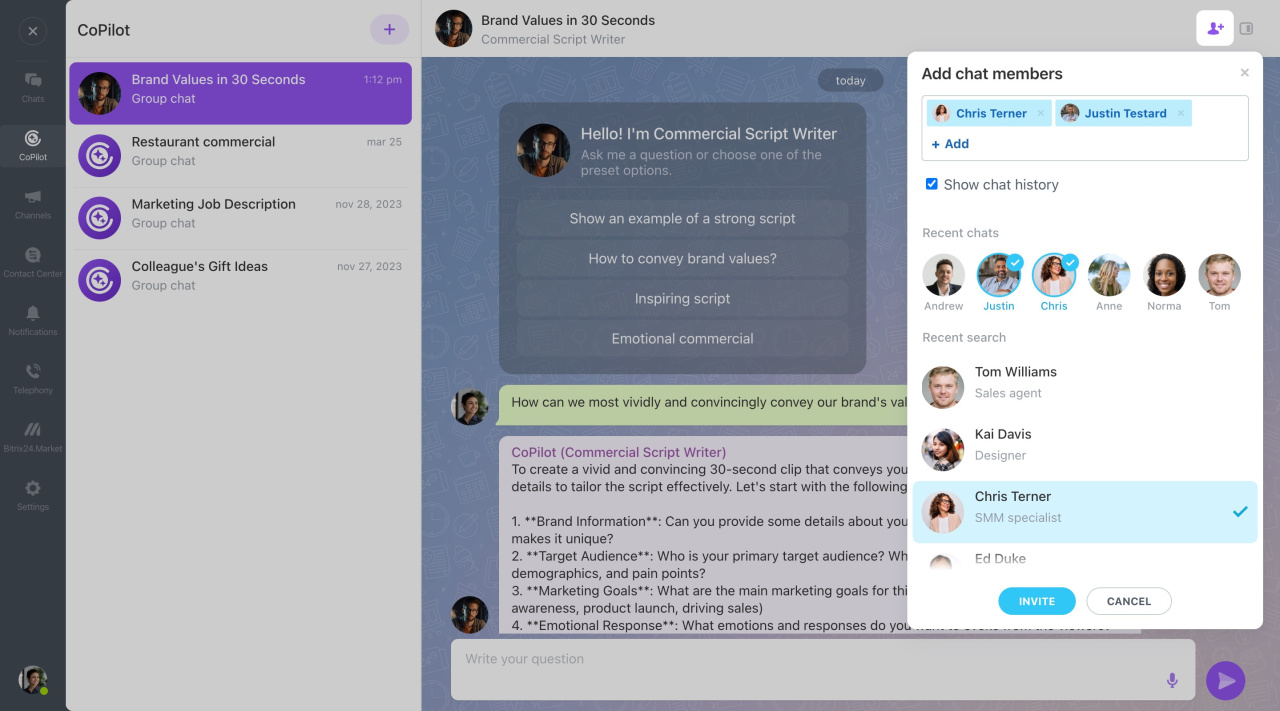
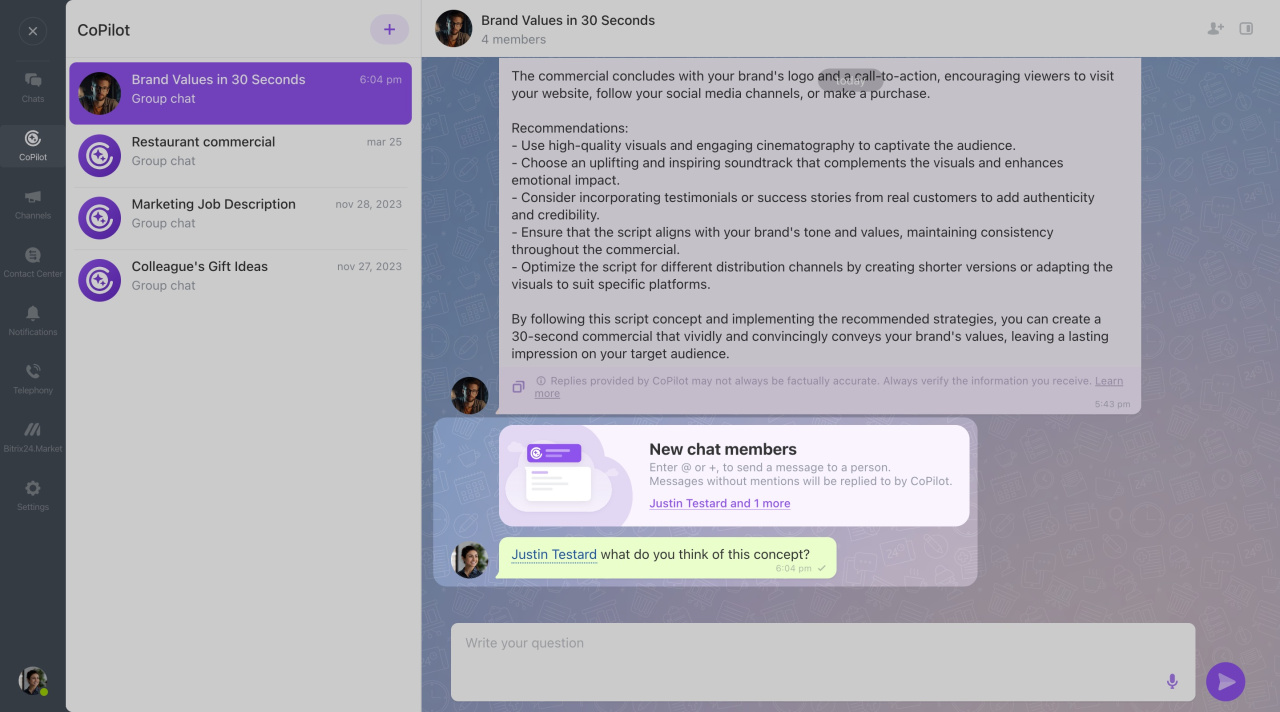
To mention a colleague in a chat with CoPilot, press + or @ and enter their name. CoPilot responds to messages without user mention.
Mobile app
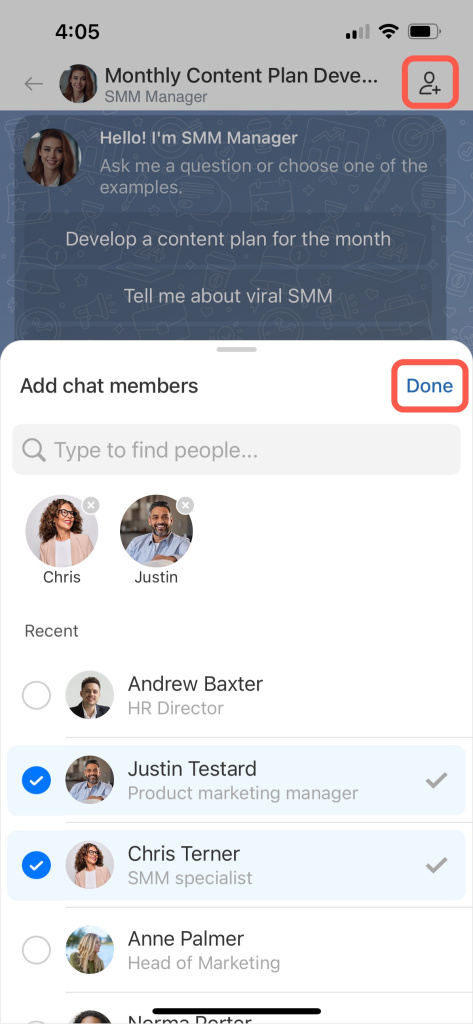
Tap the Add members icon, select employees to invite, and tap Done.
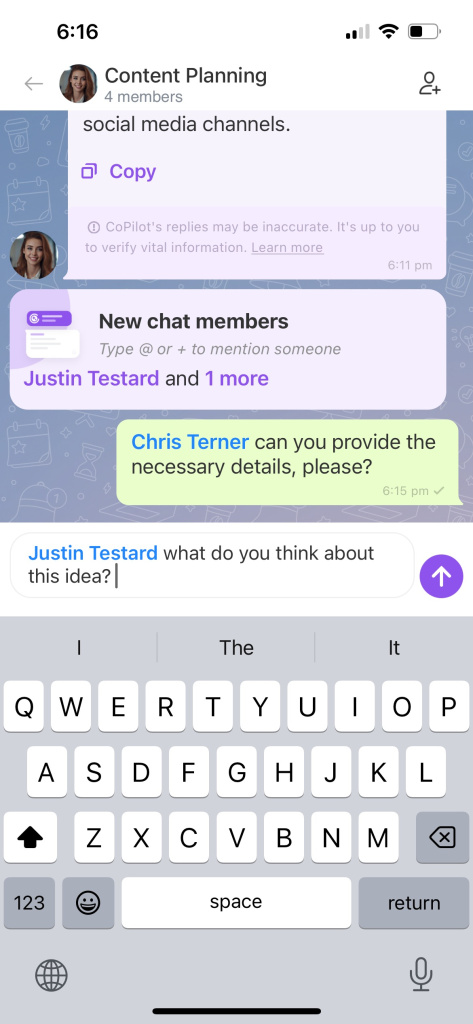
To mention a colleague in a chat with CoPilot, tap + or @ and enter their name. CoPilot responds to messages without user mention.