



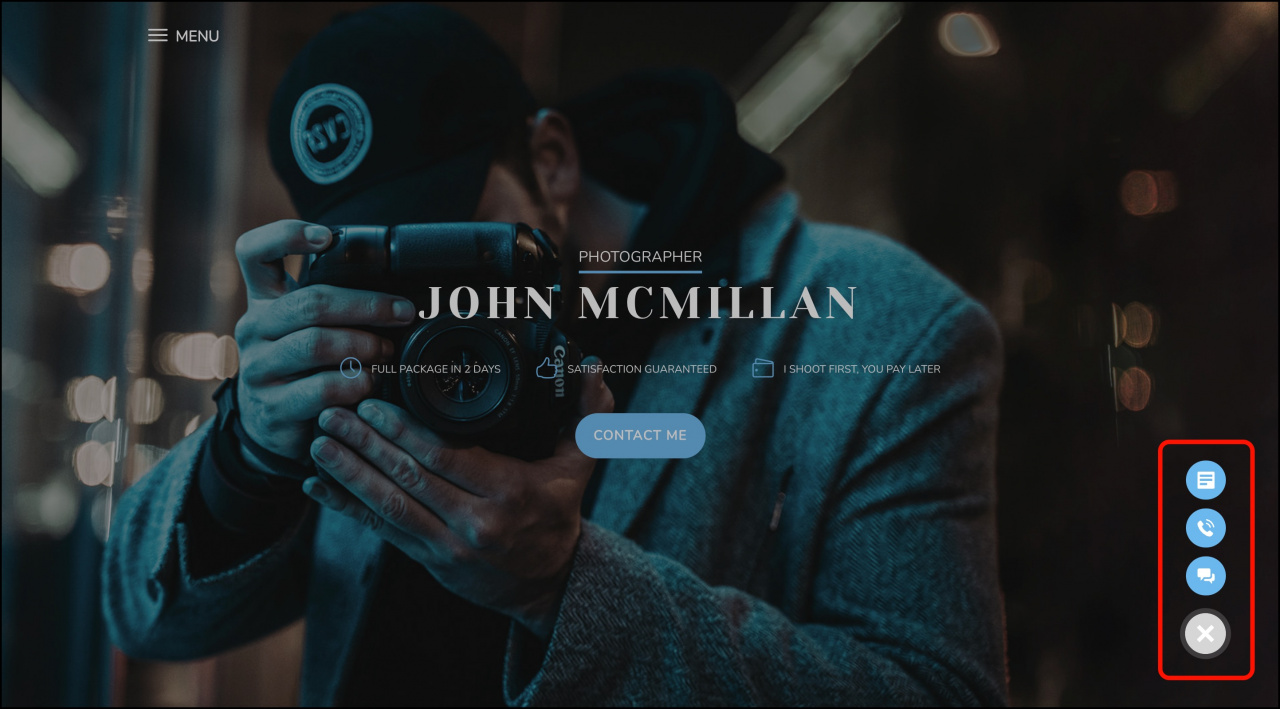
A website widget is a communication tool that is integrated into a website to facilitate interaction with visitors. It unifies various digital communication channels, including chat, CRM form, and callback option.
Visitors just click the button and select a preferred means of communication. Take advantage of this feature to improve overall site conversion and increase sales.
In this article:
How to create a new widget
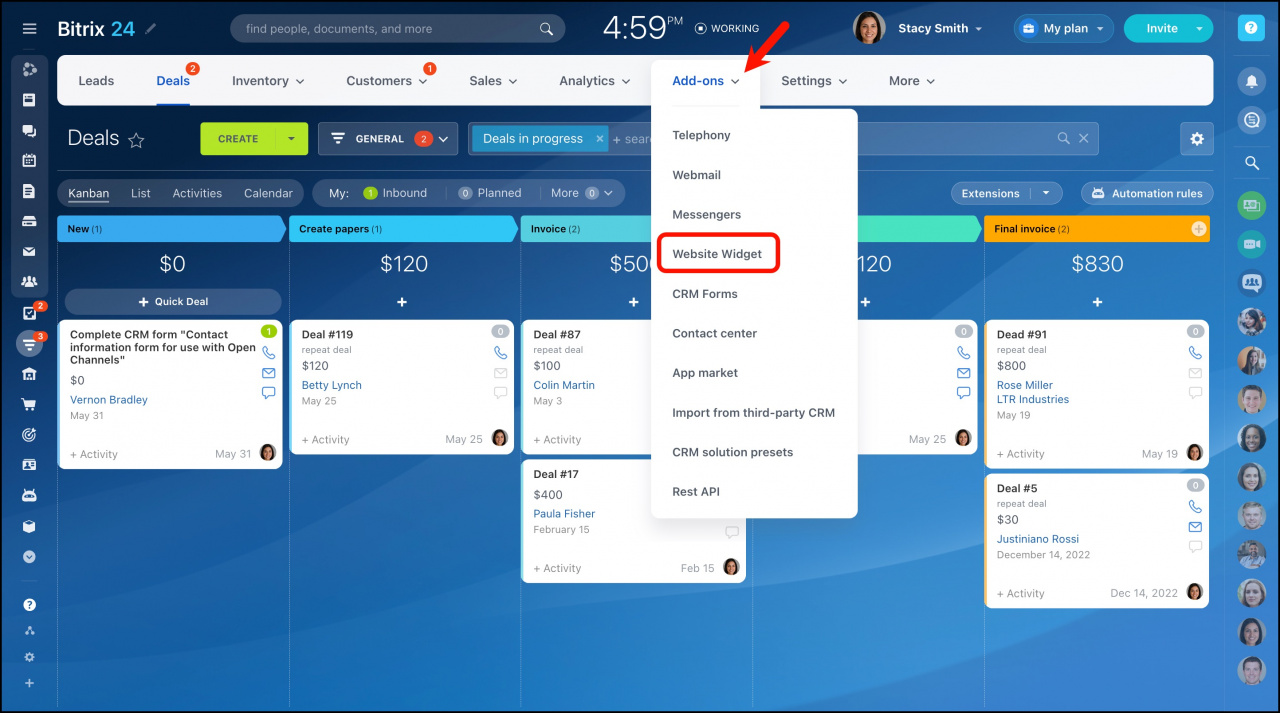
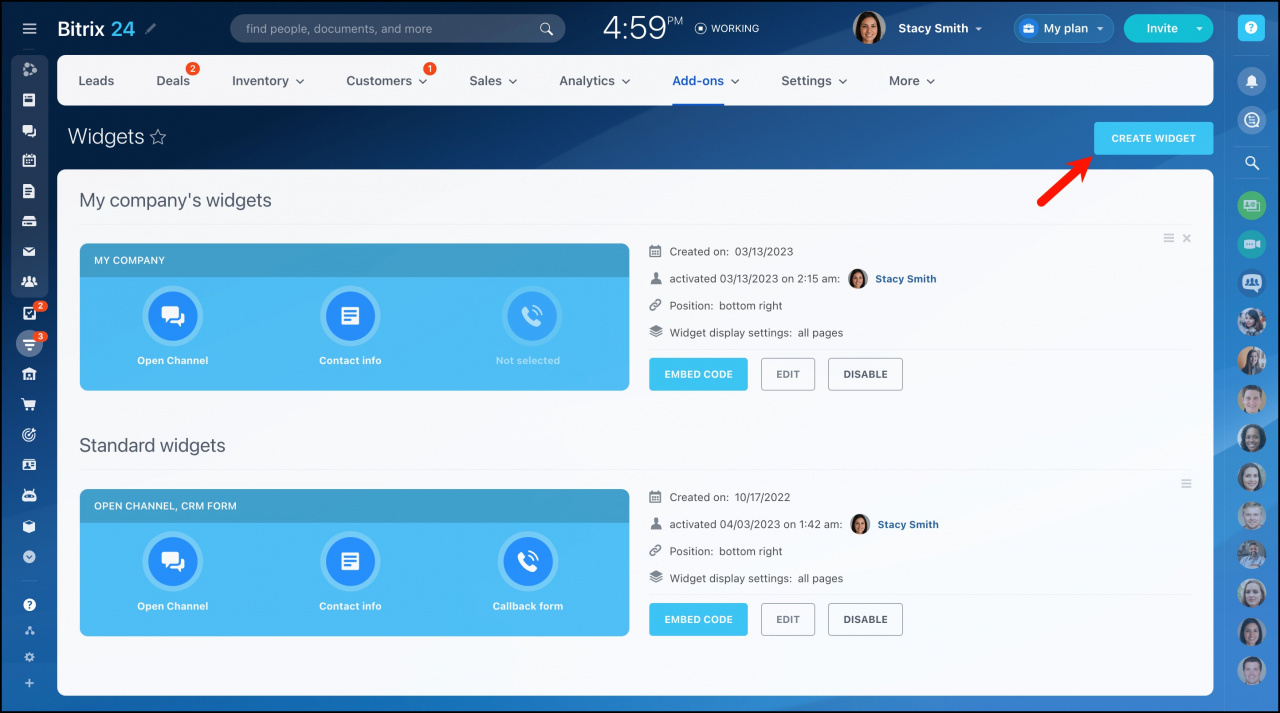
Go to CRM > Sales > Sales channels > Website widget.
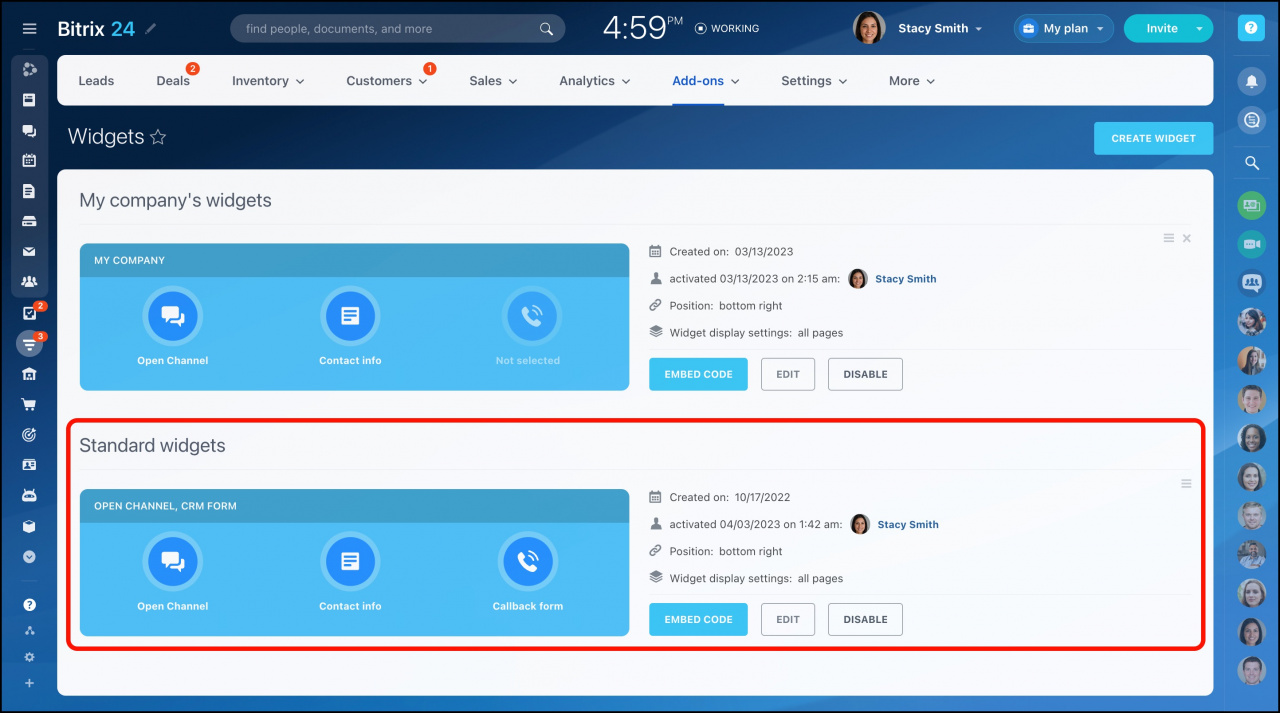
The standard widget is already there at your disposal. The widgets you create will be displayed under My company’s widgets.
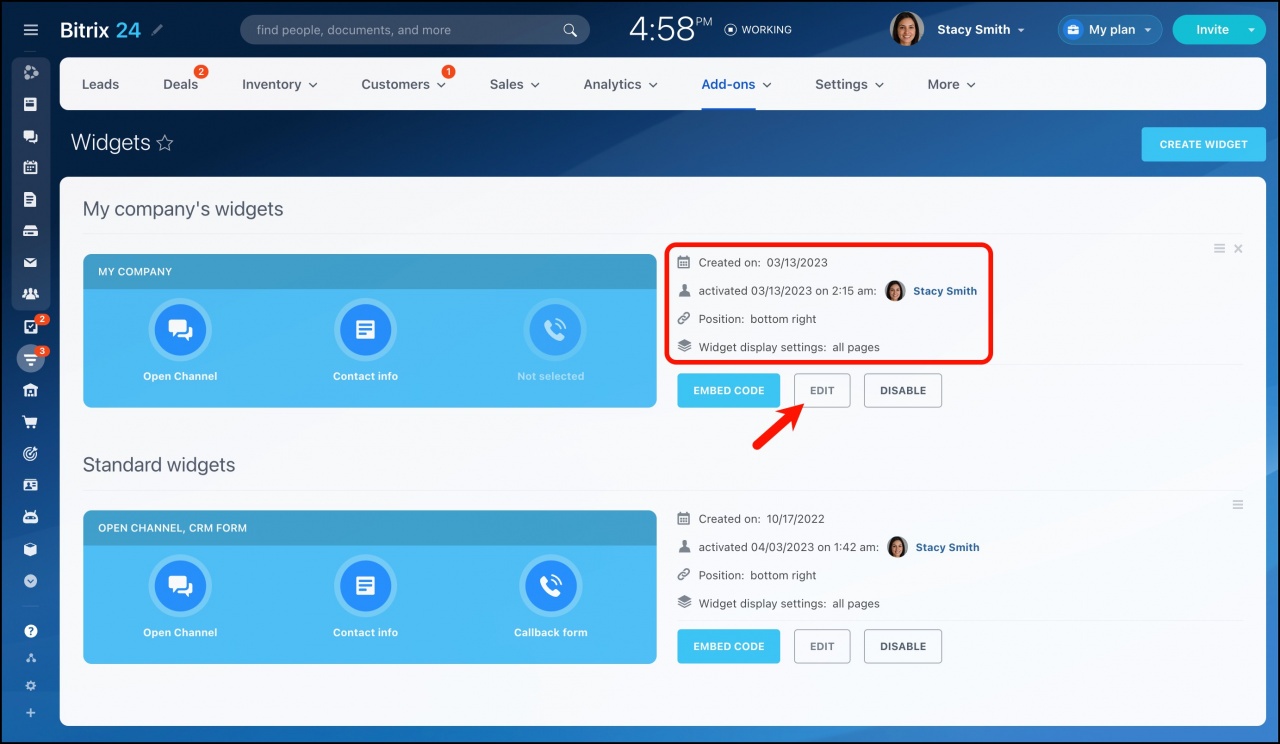
This page also provides general information about each widget. You can click the Edit button under this block to configure a widget.
Click the Create widget button to add a new one.
A new widget form opens on a new sliding page. Specify the widget name and proceed with its settings.
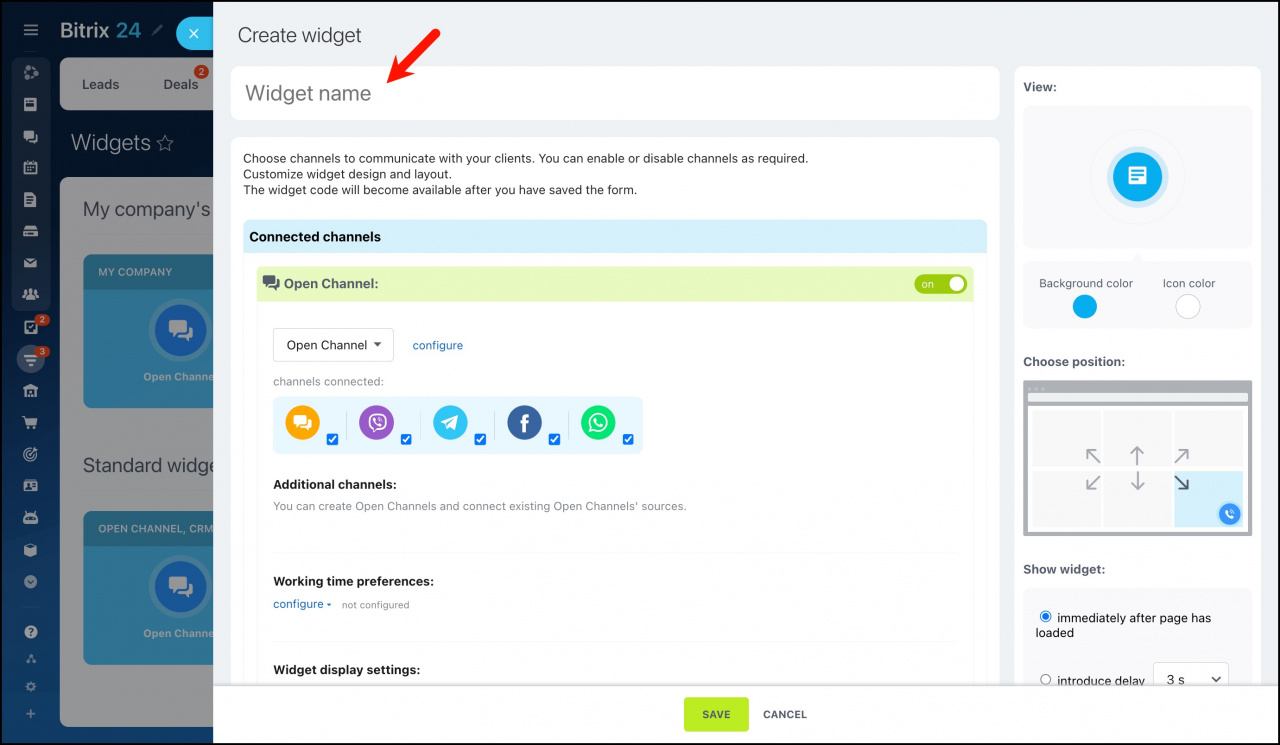
Widget settings
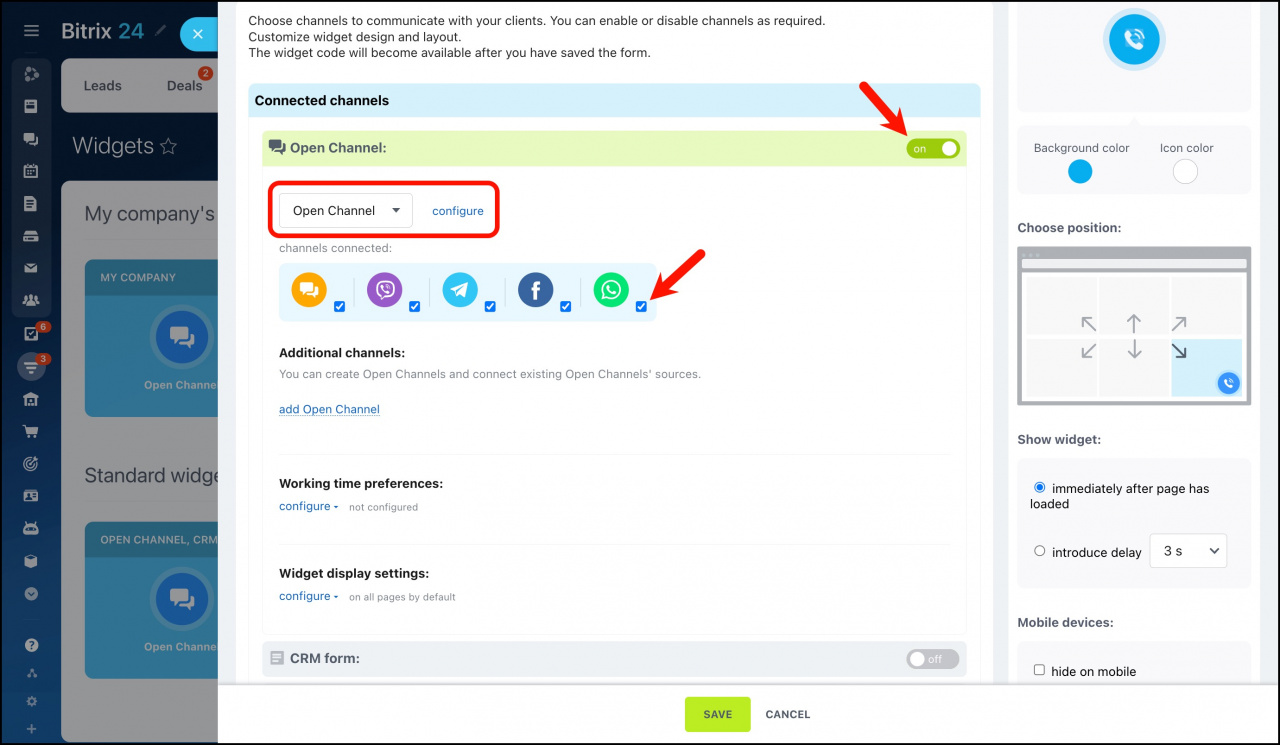
Widget settings allow you to activate either chosen or all options (online chat (via Bitrix24 Open Channels), callback, CRM form). By default, all of them are enabled.
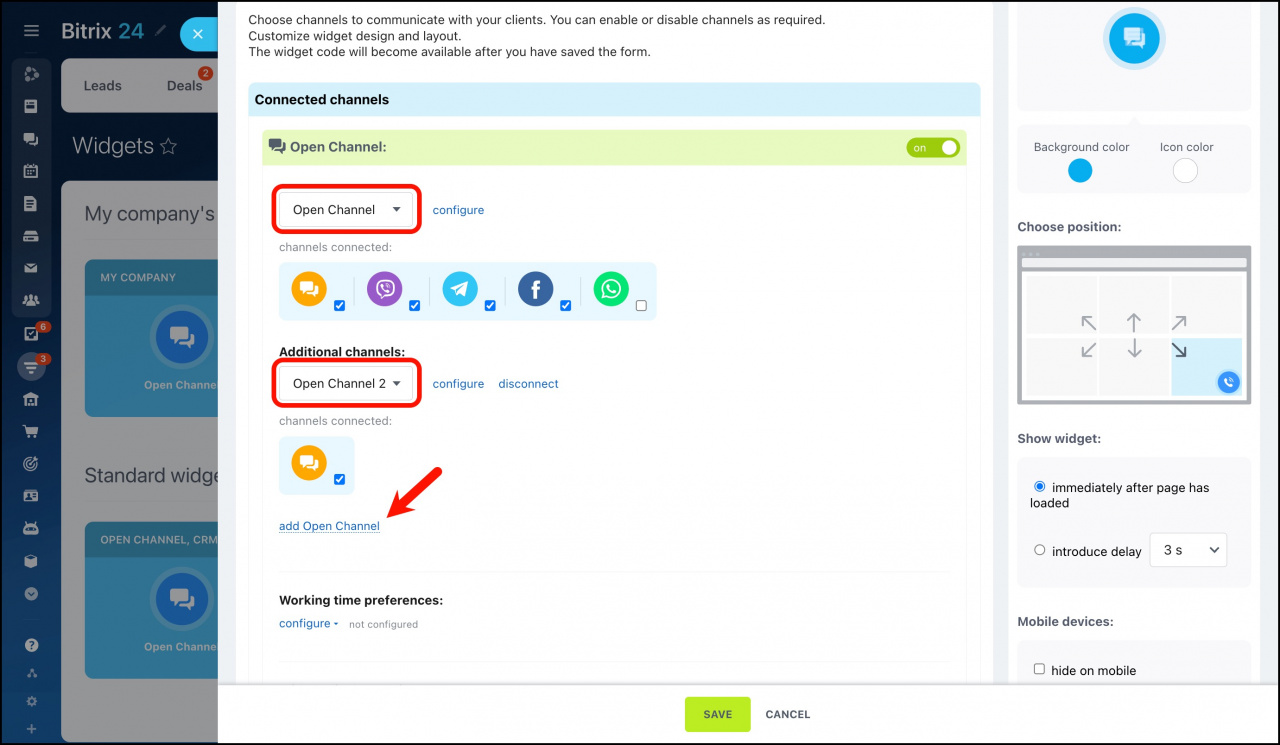
Open Channel
CRM form
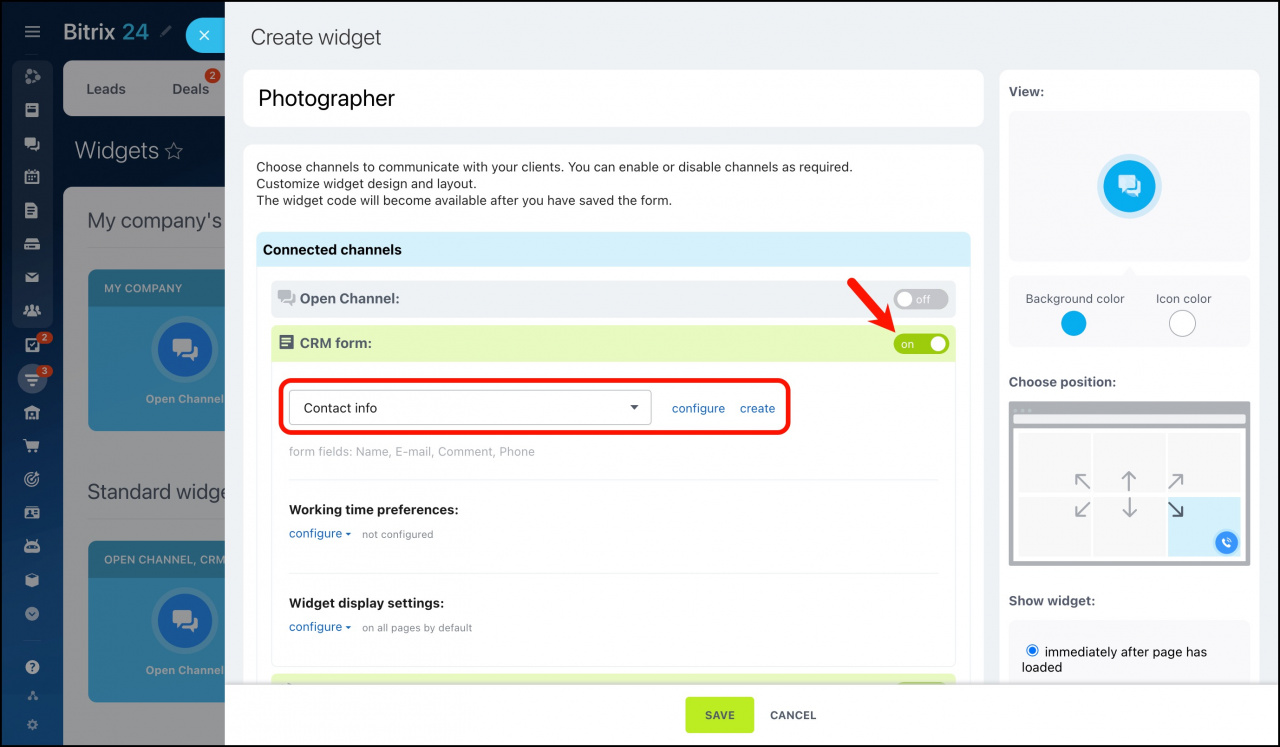
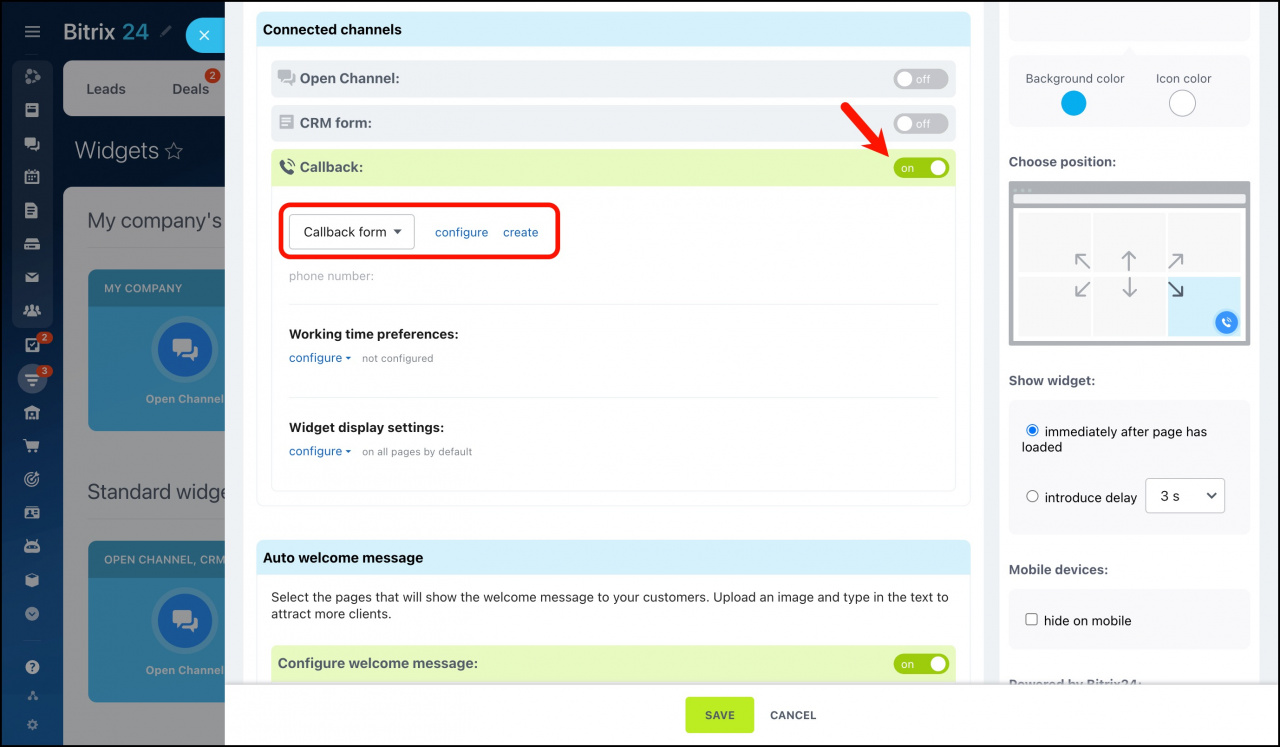
Callback
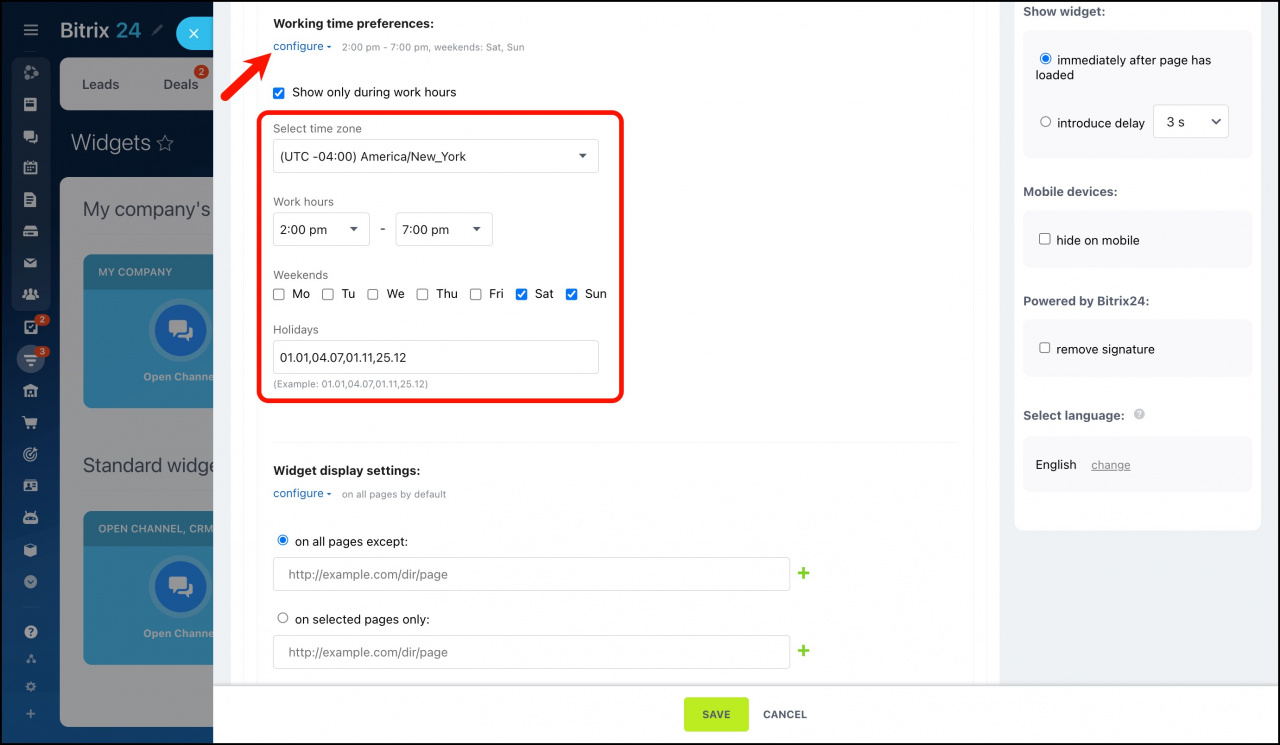
Working time preferences
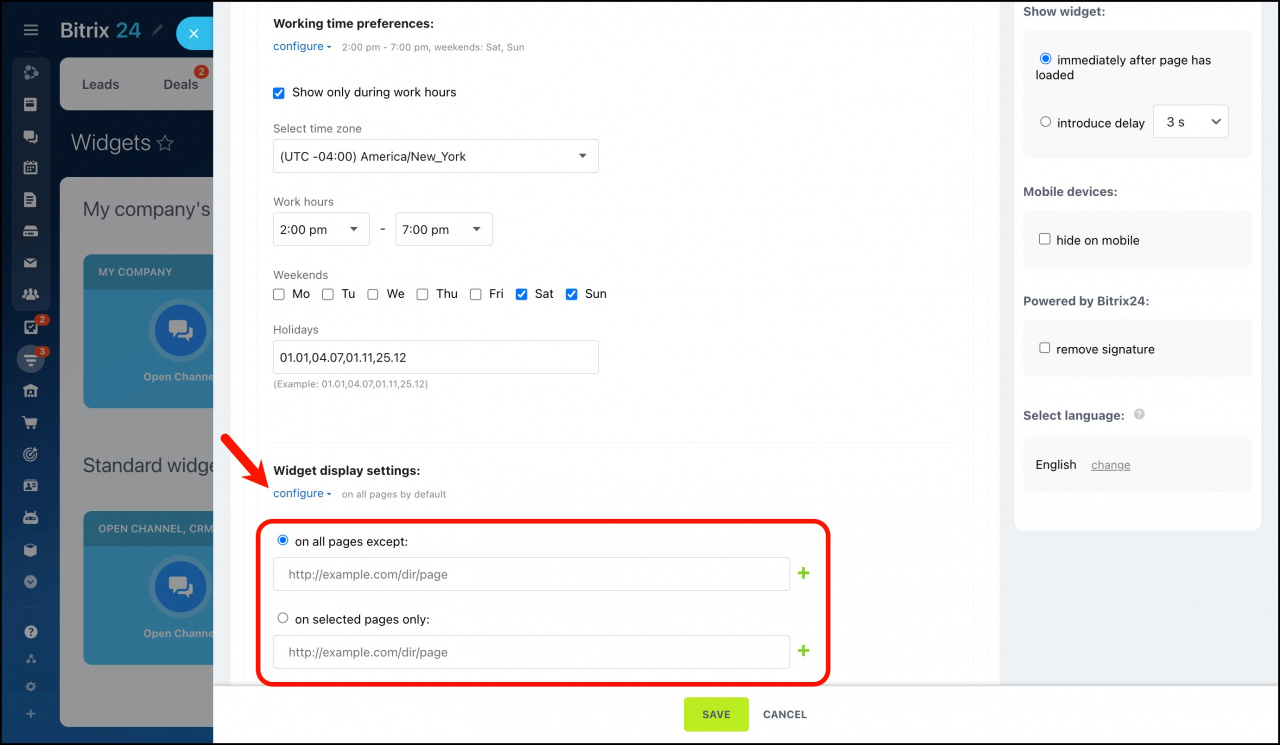
Widget display settings
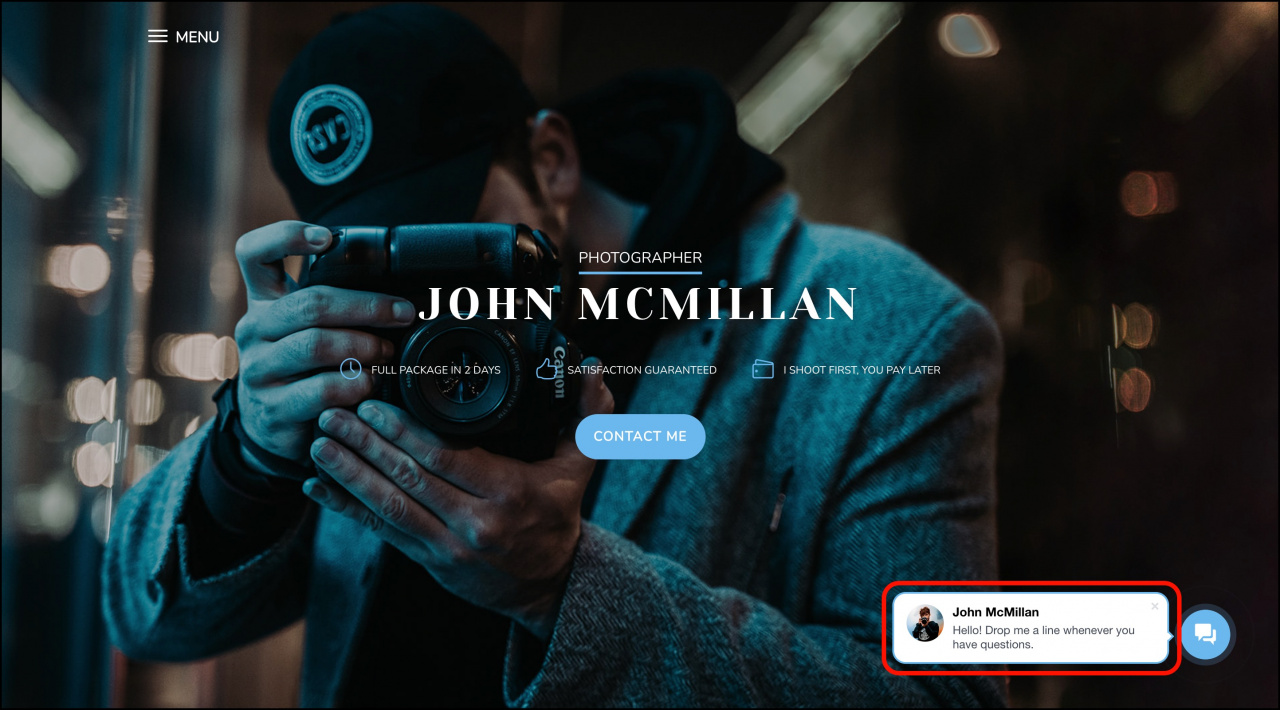
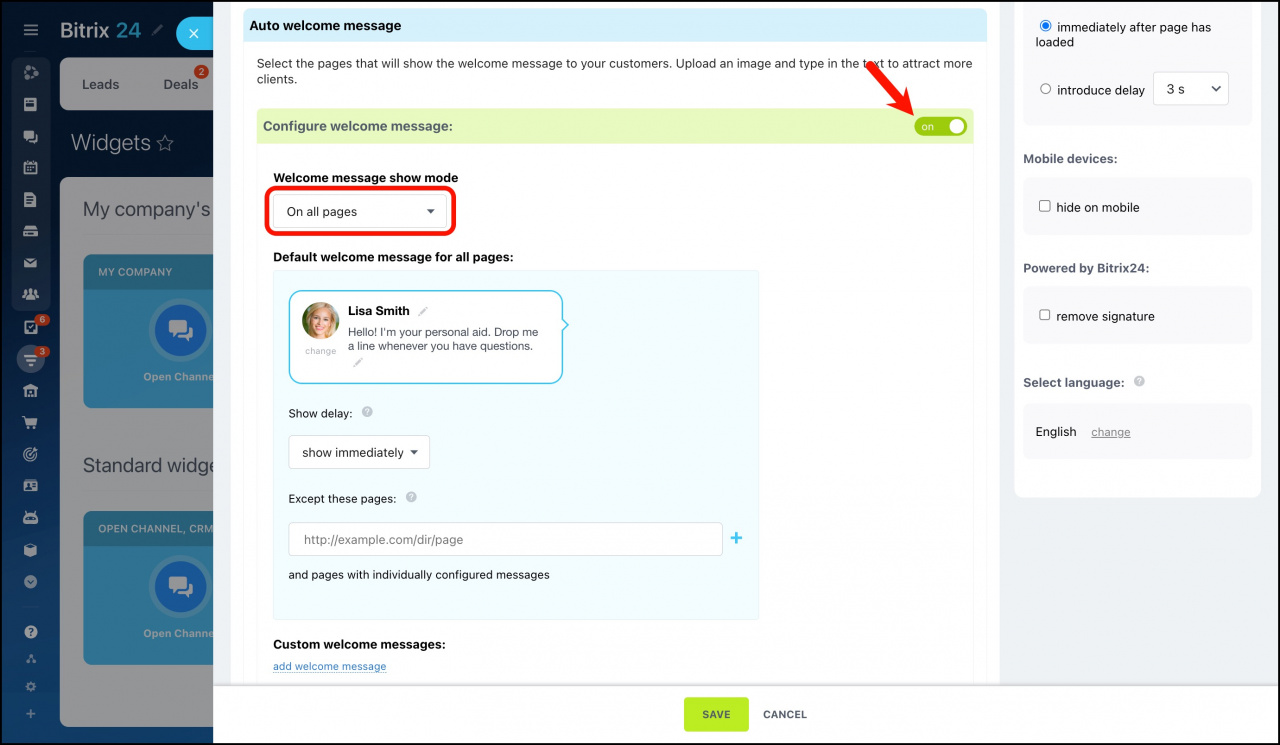
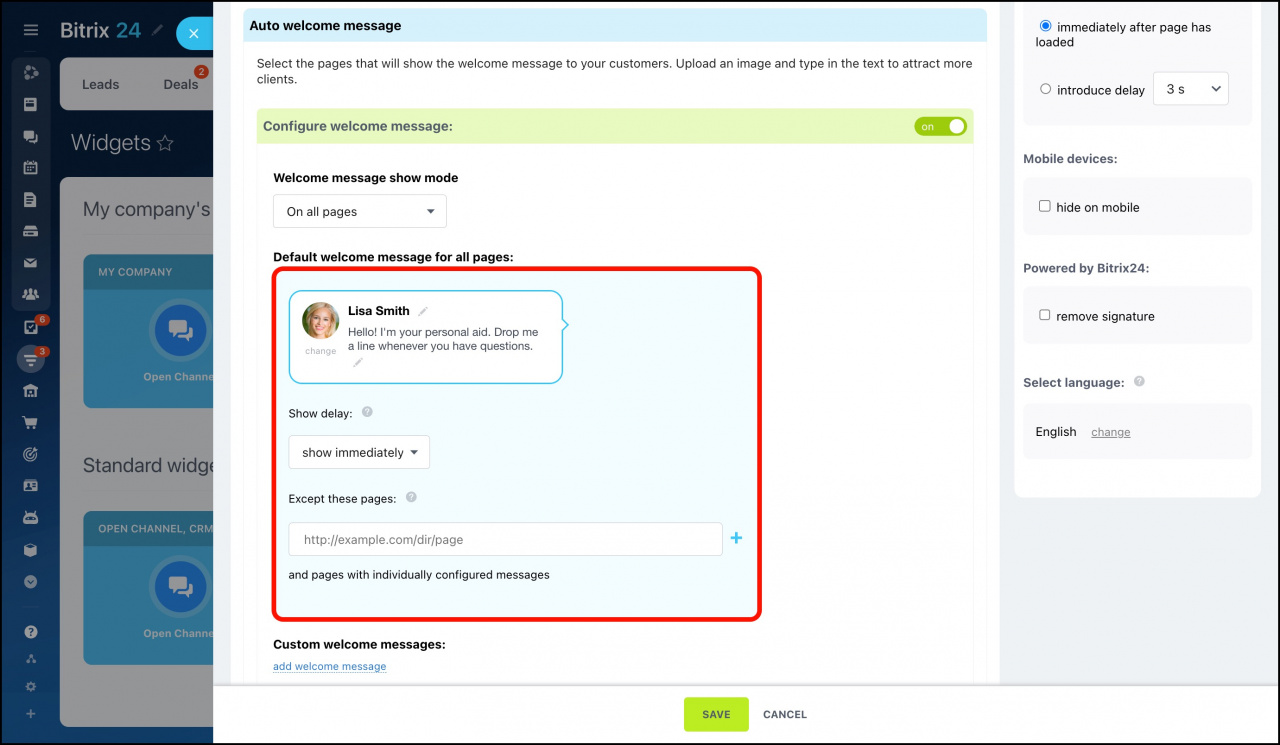
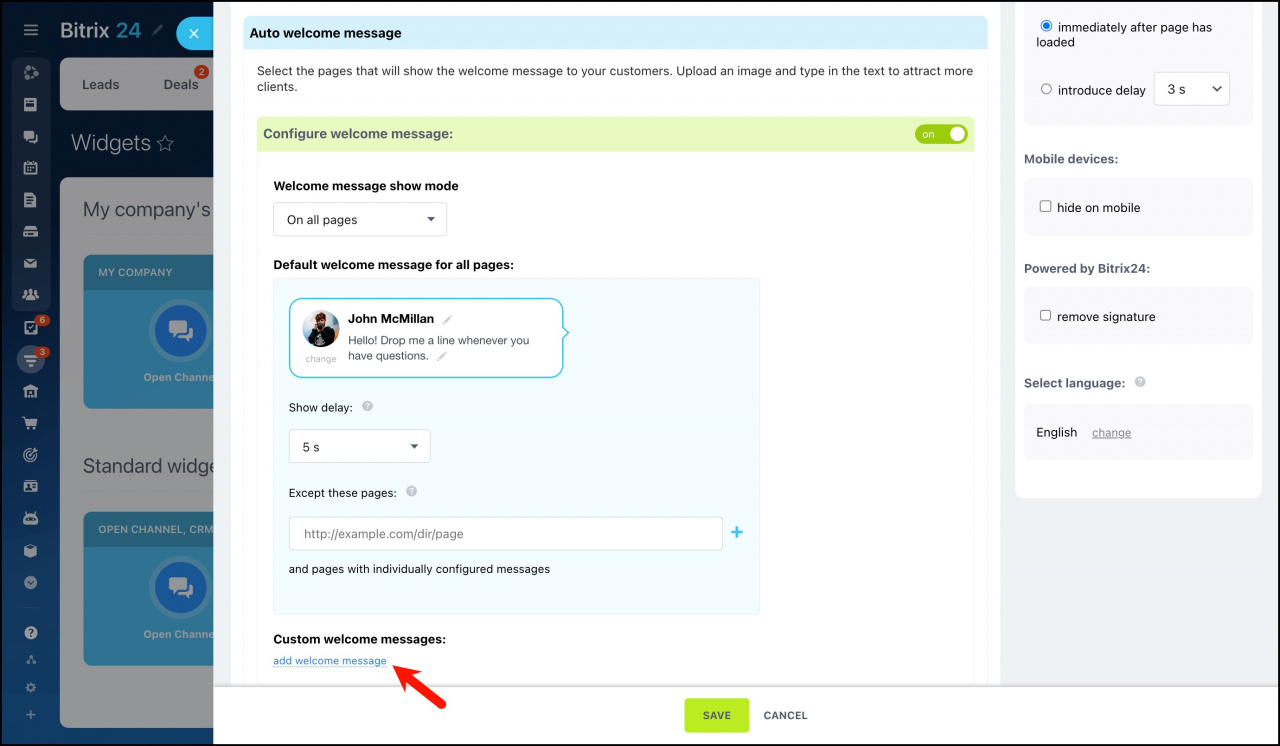
Auto welcome message
Widget view settings
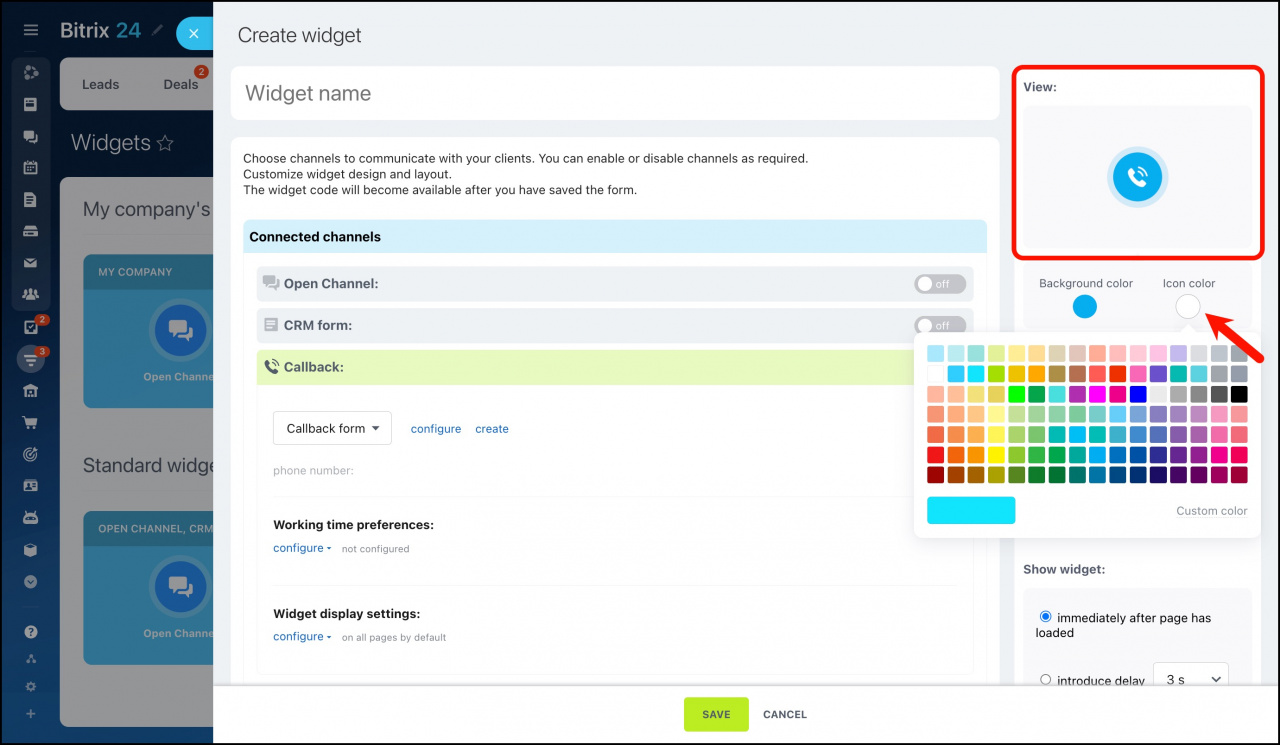
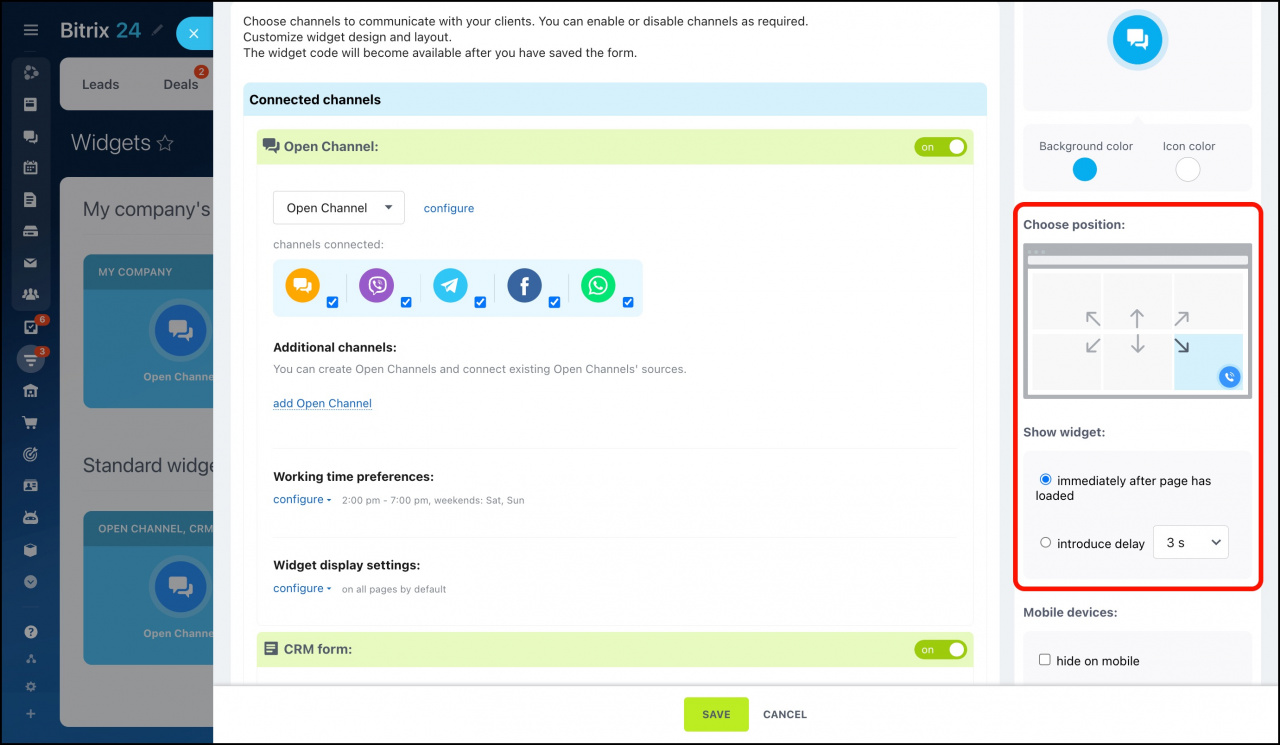
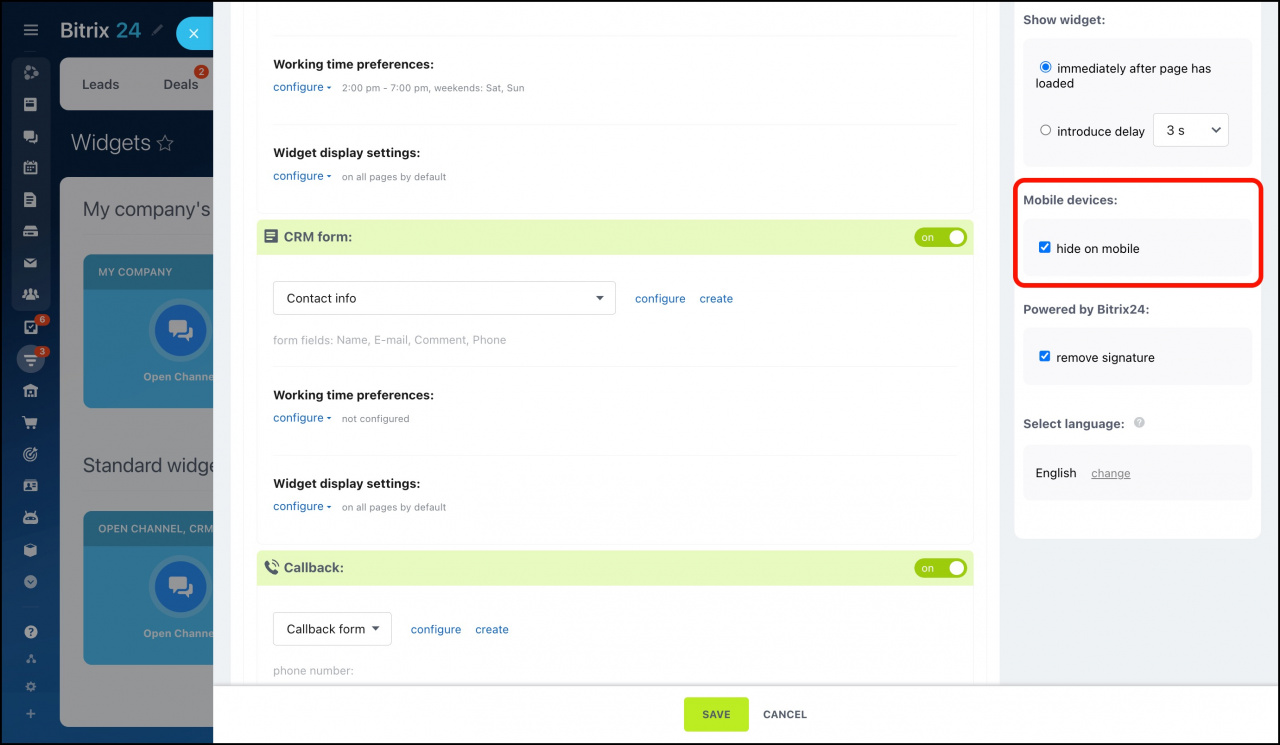
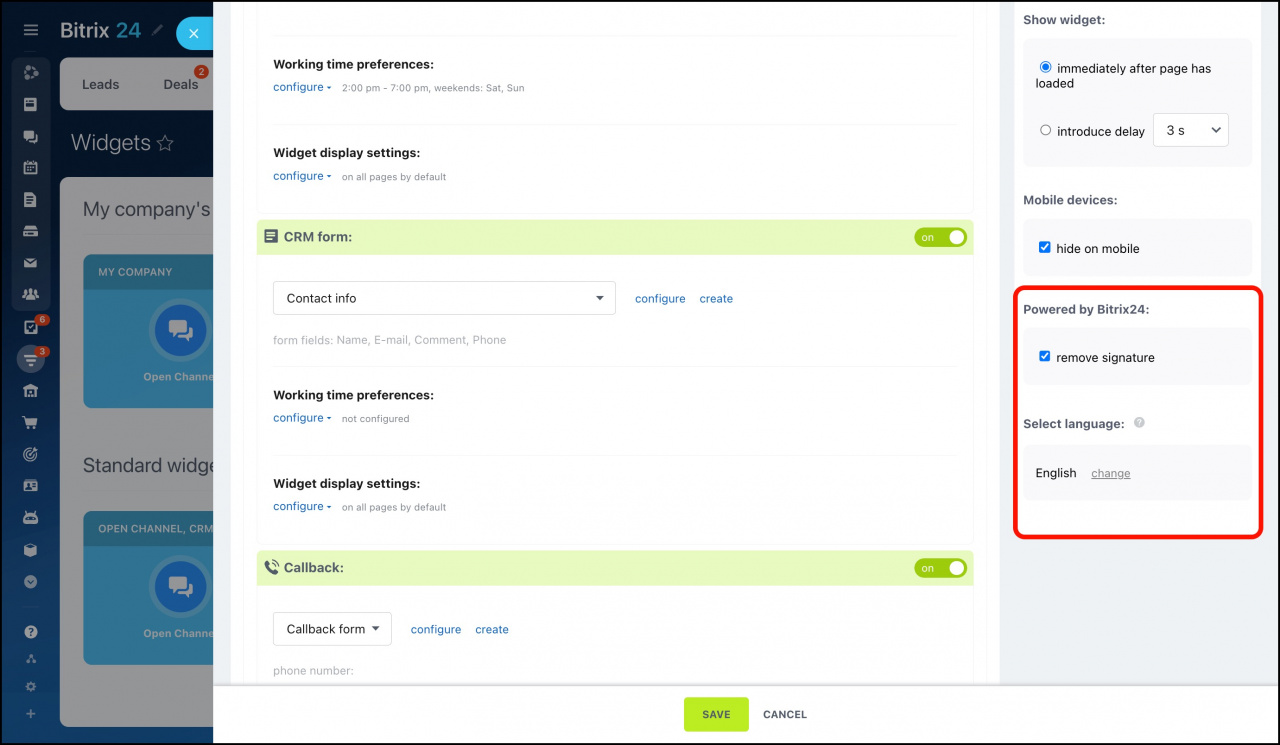
Place a widget on your website
You can use a website widget on sites created with Bitrix24 or in another CMS.
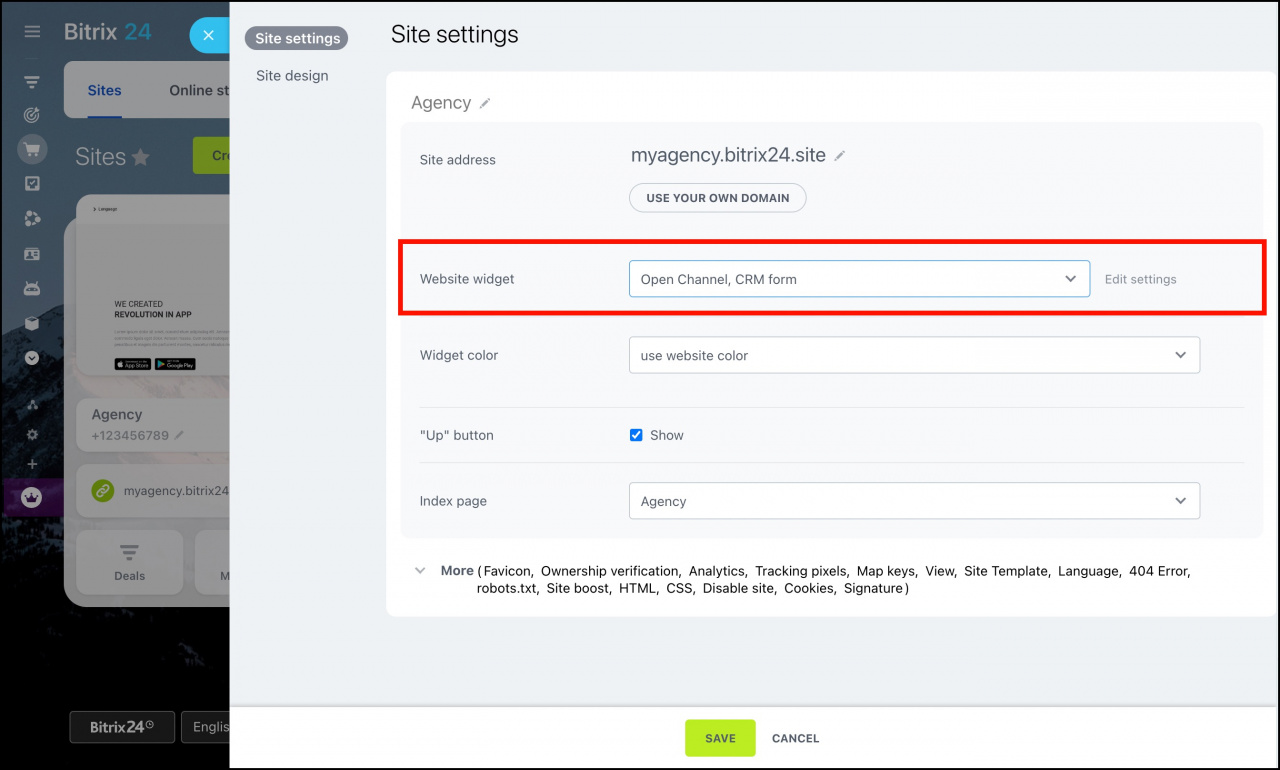
In Bitrix24 Sites, specify the required widget in the site settings.
To get the widget code for a third-party website, click the Embed code button.
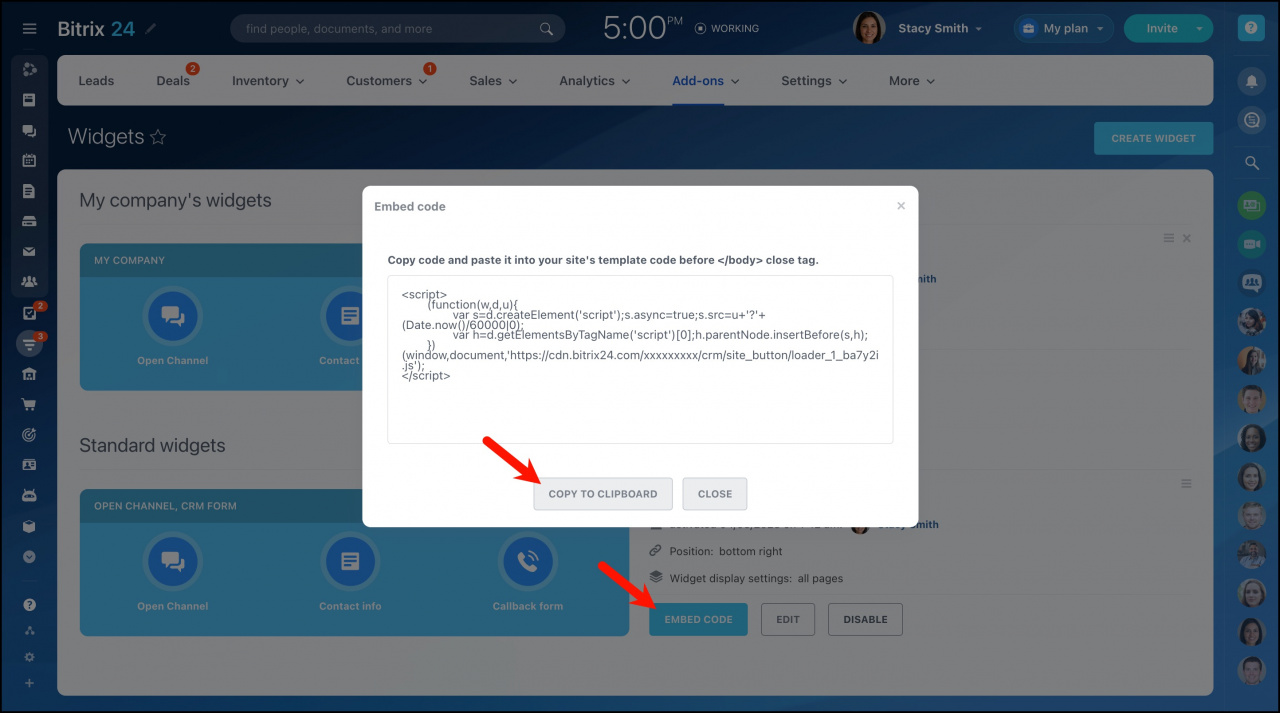
Then paste it to the code of your website template before the /body close tag.
How to delete a widget
You can only remove My company’s widgets. Pre-installed widgets cannot be removed. To delete a widget, click the cross in the upper right corner.
